
Vigilance Dashboard
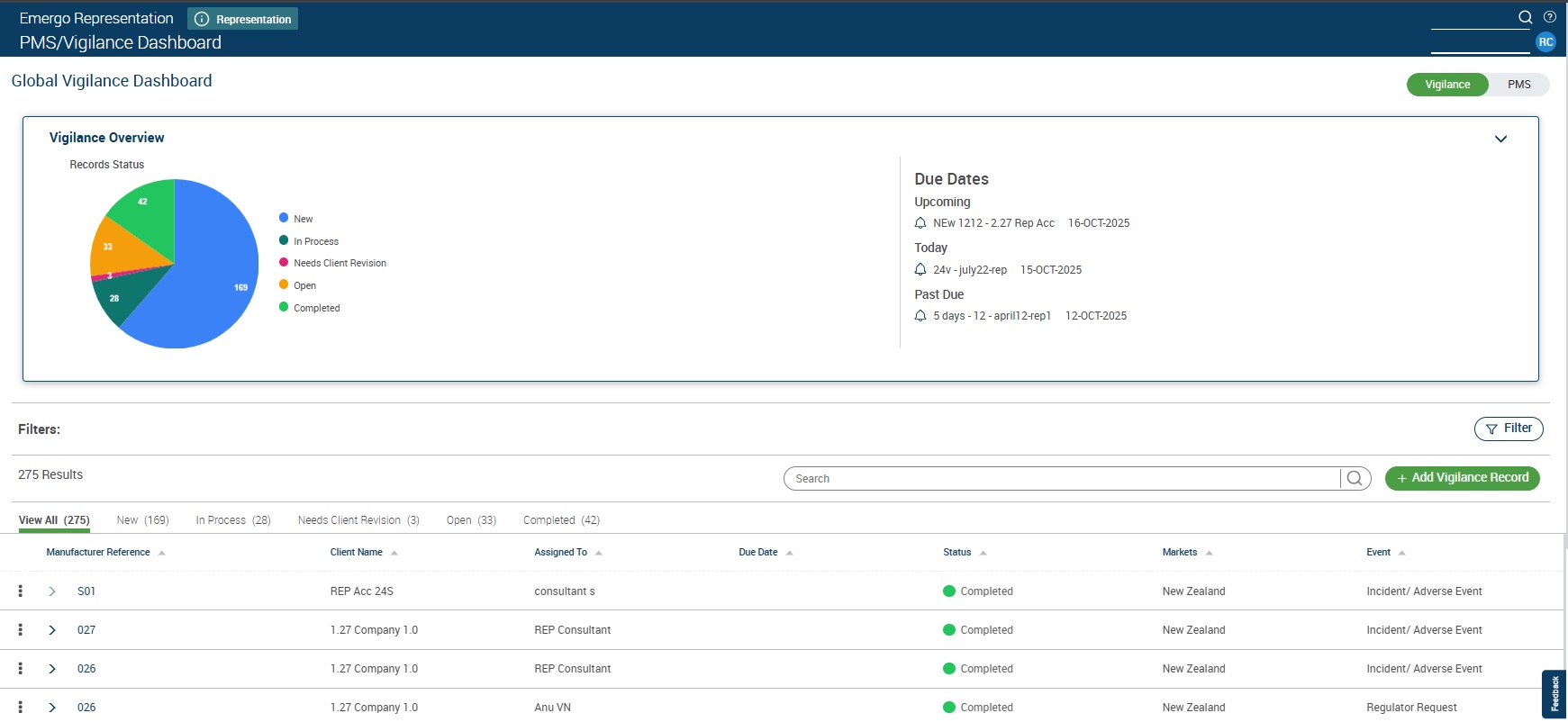
Vigilance dashboard has been introduced to create and manage vigilance reports and regulatory inquiries for Australia and New Zealand markets.
To access vigilance dashboard:
Click on PMS/Vigilance Dashboard in the left navigation.
Clicking on PMS/Vigilance Dashboard will open vigilance page.
Figure: Vigilance Dashboard
To create a vigilance record:
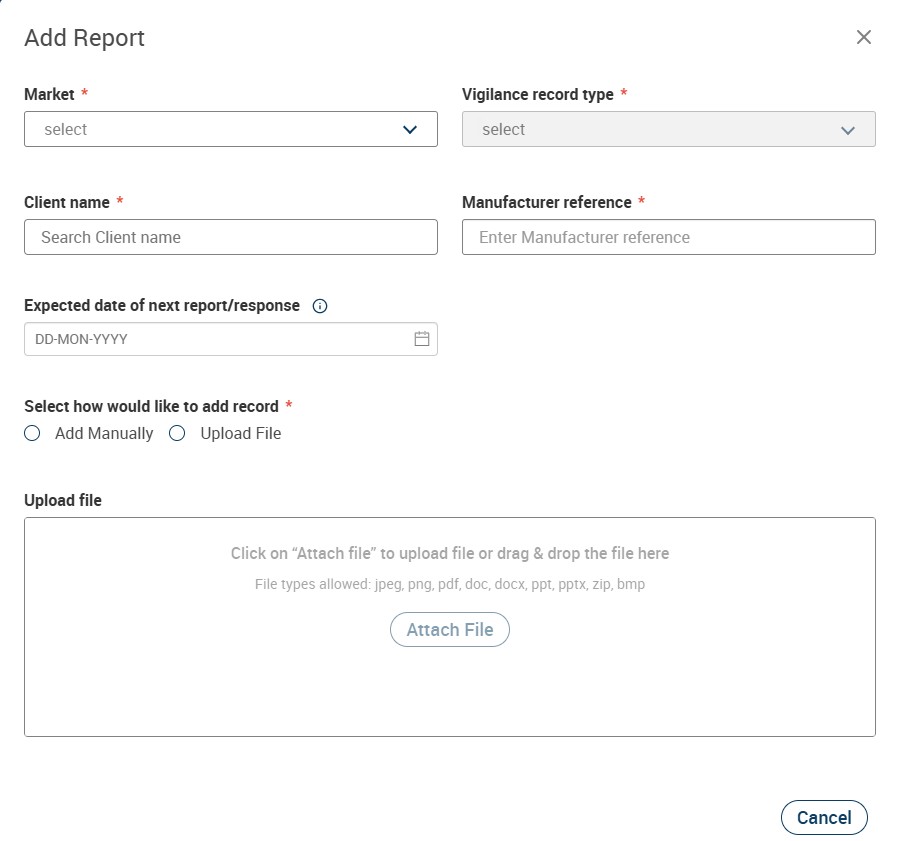
Click on “Add Vigilance Record” button
Enter the details as per the pop up and click on “Next”.
Fill the details and “Submit”.
Figure: Add Vigilance Record
To add a child record:
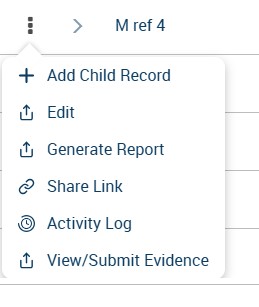
Click on the 3 dots menu and select “Add Child Record”
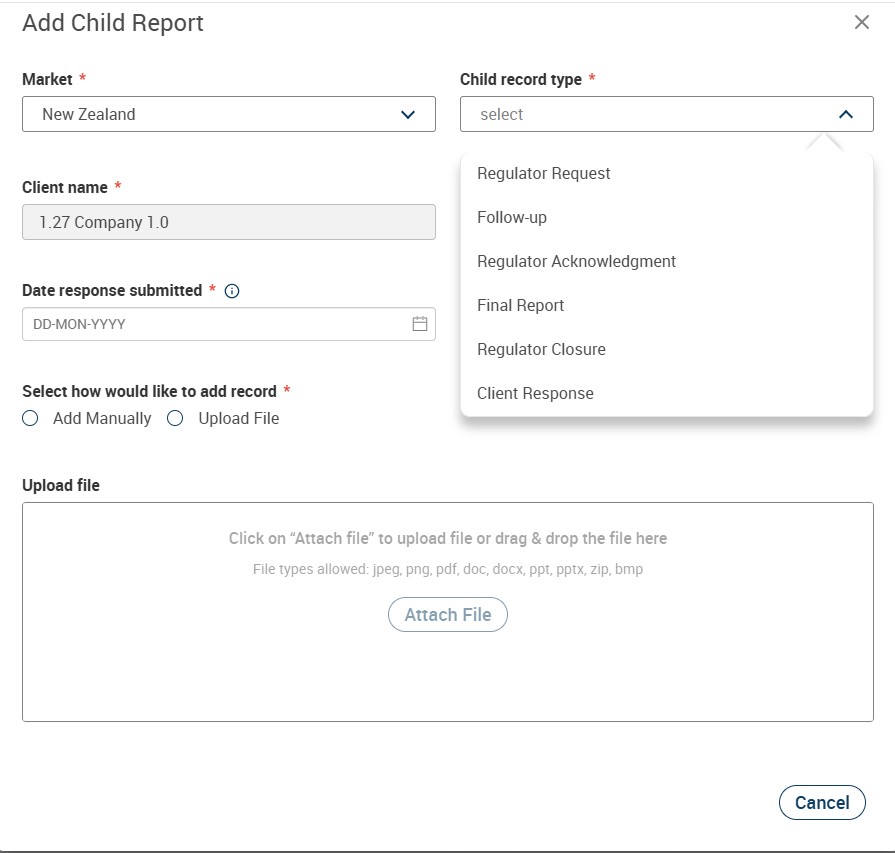
Enter the details, select the child record to be created and click on “Submit”.
Figure: Add Child Record
To submit evidence:
Click on the 3 dots menu and select “View/Submit Evidence”.
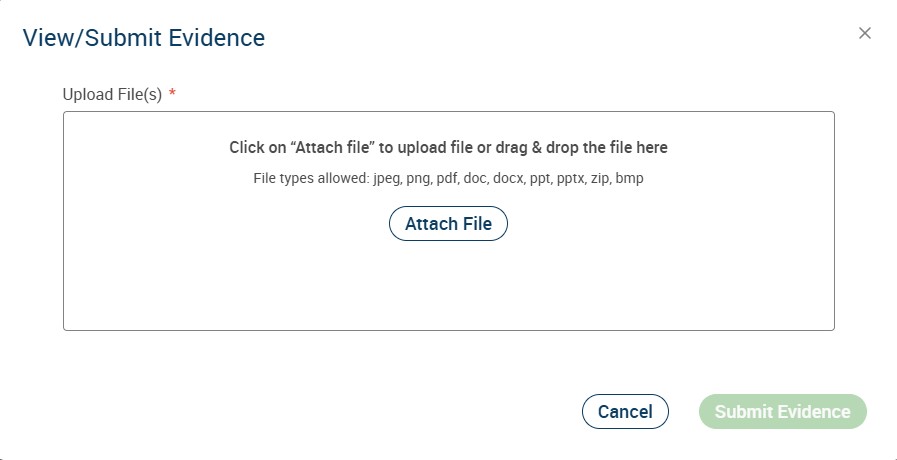
Upload file and click on “Submit Evidence”.
Figure to View/Submit Evidence
To generate report:
Click on the 3 dots menu and select “Generate Report” Note: Report generation option is available only for Incident/Adverse event, initial, follow up and final/combined records
A report will be generated and downloaded in PDF format.
___________________________________________________________________________________________________________________________________
PMS Dashboard
PMS dashboard has been introduced to efficiently submit and manage PMSR/PSUR reports to Emergo for EU, Switzerland and UK markets.
To access PMS Dashboard
In the vigilance dashboard page, enable "PMS" toggle on the top right corner.
Figure: Access PMS Dashboard

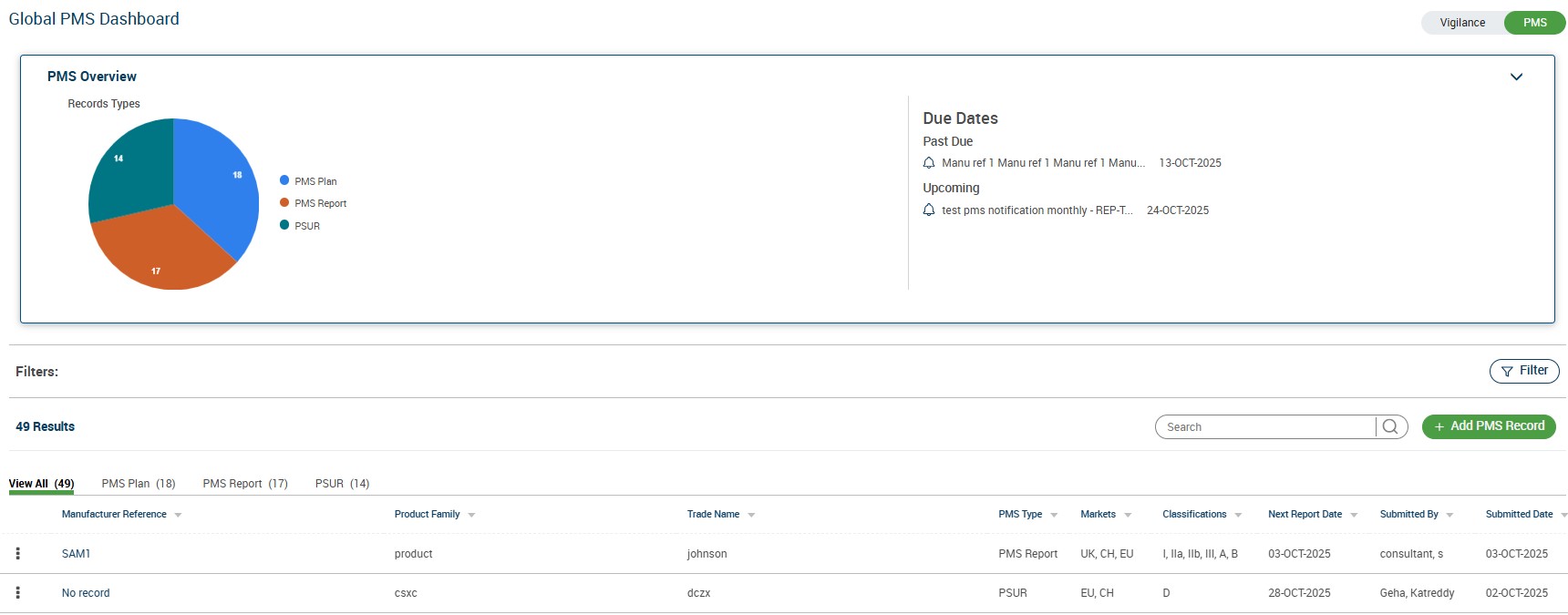
Figure: PMS Dashboard
To create PMS Record
Up on enabling PMS toggle, PMS dashboard page will be displayed
Click on "Add PMS Record"
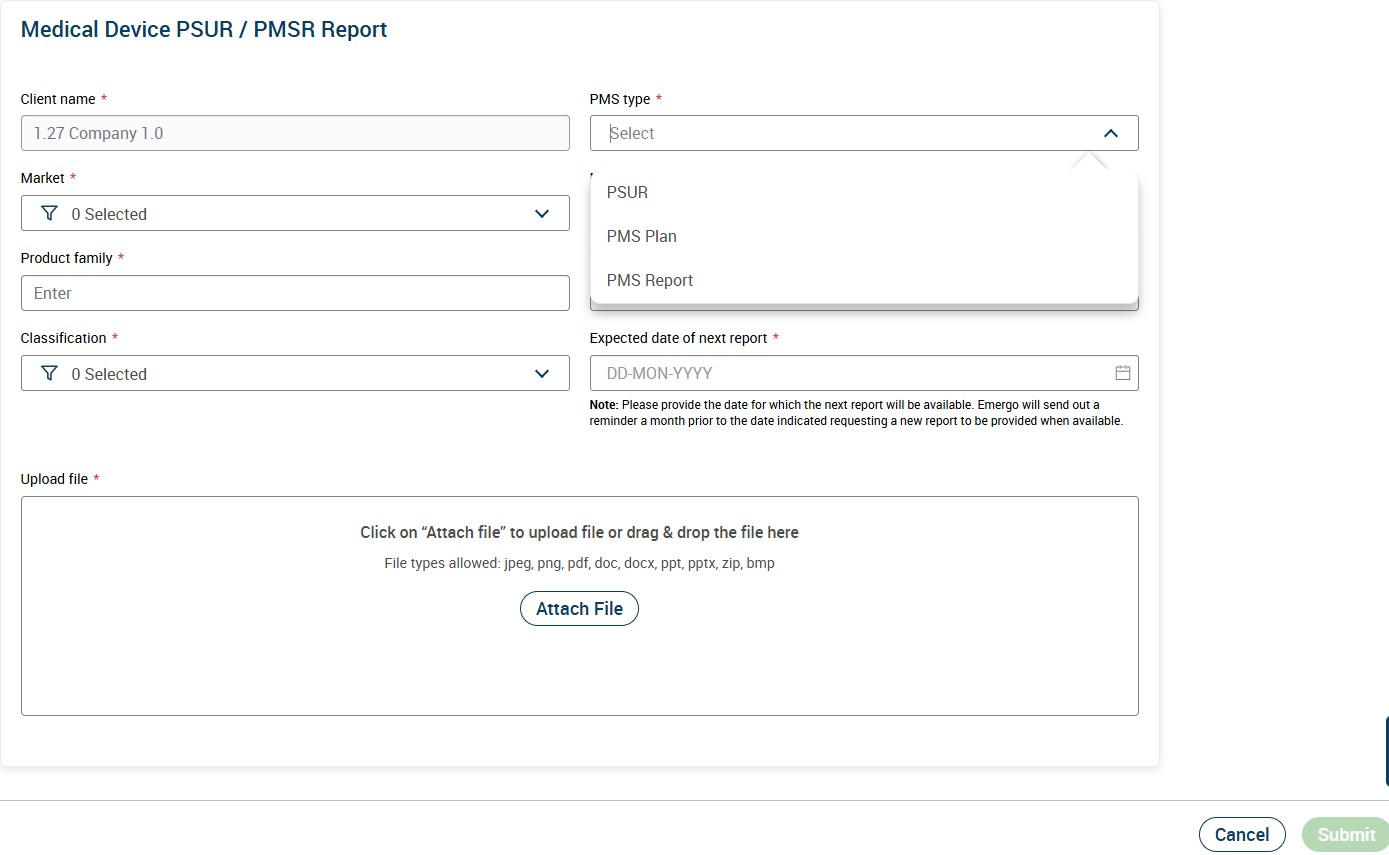
Enter Client details, PMS type etc and click on "Submit".
The created record will be displayed in the PMS dashboard.
Figure: Add PMS Record