

Profile
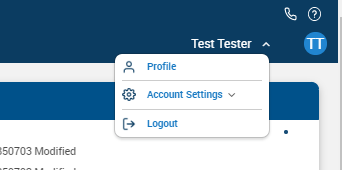
In the Profile section, a user can change the Display Name, Company Name, Profile picture, Title or Password.
To change Display Name, Company Name, Profile picture or Title:
1. Click on the down arrow to the right of your name (in the upper right corner).
2. Click on the "Profile & Account" button.
3. Enter new data
4. Click "Save Changes"
To change your password:
1. Click on the down arrow to the right of your name (in the upper right corner).
2. Click on the "Profile & Account" button.
3. Click on the "Change password" button.
4. Enter your new password into the "New password" field.
5. Enter your new password into the "Confirm new password" field.
6. To save your new password, click the "Save" button. To undo your change, click "Cancel".