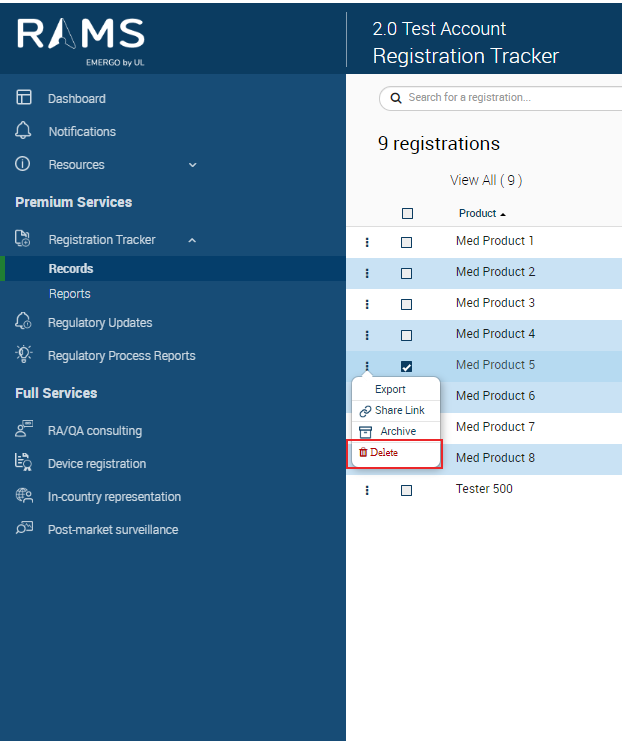

Delete Records
Note: Only users with an Account Owner or Editor role can delete a record.
"Learn more about user roles."
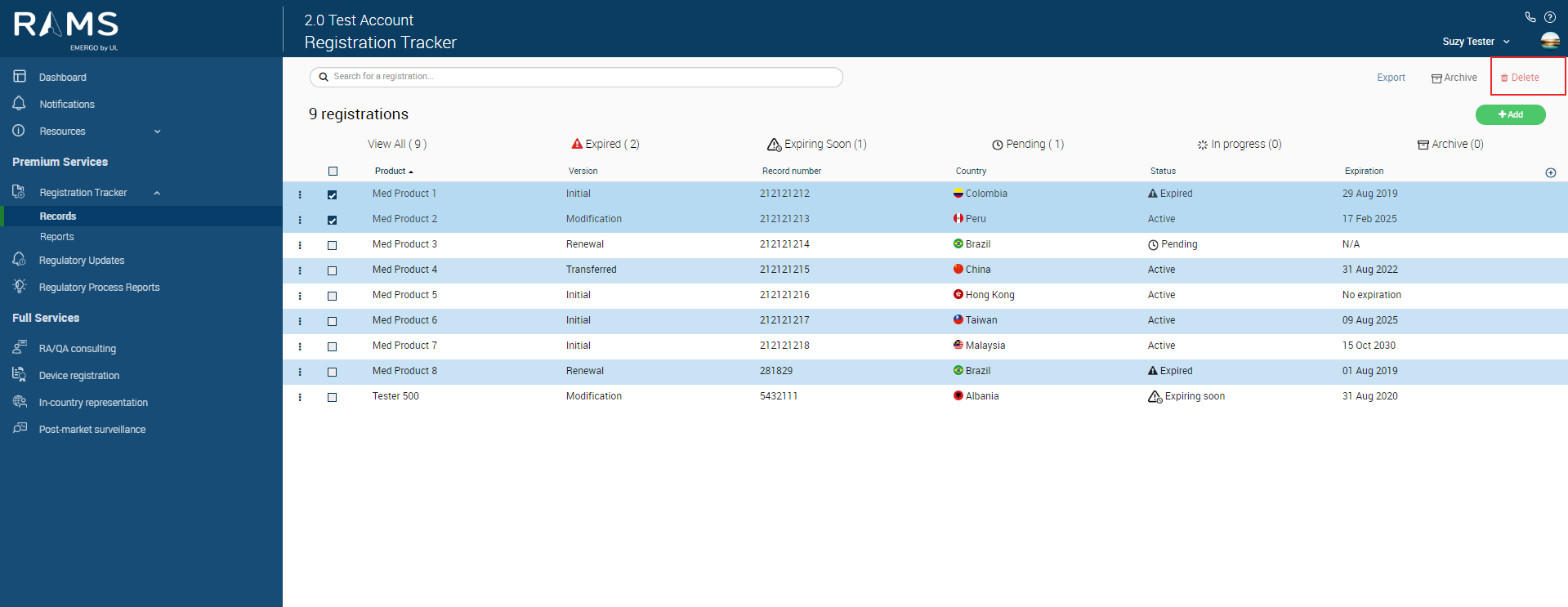
To Delete Multiple Records (A):
1. On the Records page, select the records by clicking on the check-boxes on the left side of the record.
2. Click the “Delete” button.
3. Review the selected records to confirm you wish to delete them. To delete the selected records, click “Yes, delete registrations”. To cancel, click “No, cancel”.
Figure: Delete Records (A)
To Delete A Record (B):
1. On the Records page, select one or more registration or certificate records by clicking on the check-boxes on the left side of the registration or certificate record.
2. Click the three blue dots left of the record you wish to delete> Select Delete
3. Review the selected records to confirm you wish to delete them. To delete the selected records, click “Yes, delete registrations”. To cancel, click “No, cancel”.
Figure: Delete Records (B)